If you want Google to find and index your pages faster, an XML sitemap is one of the most powerful — and most overlooked — tools available to you.
Most beginners either don’t have a sitemap at all, or they set one up once and never think about it again. Both are mistakes that silently hurt your SEO.
In this complete guide, you’ll learn:
- What an XML sitemap is and why it matters
- The difference between XML and HTML sitemaps
- How to create an XML sitemap in WordPress (with and without plugins)
- How to submit your sitemap to Google Search Console and Bing
- How to optimize your sitemap for better crawling and indexing
- Common sitemap mistakes and how to fix them
Let’s get started. 👇
What Is an XML Sitemap?
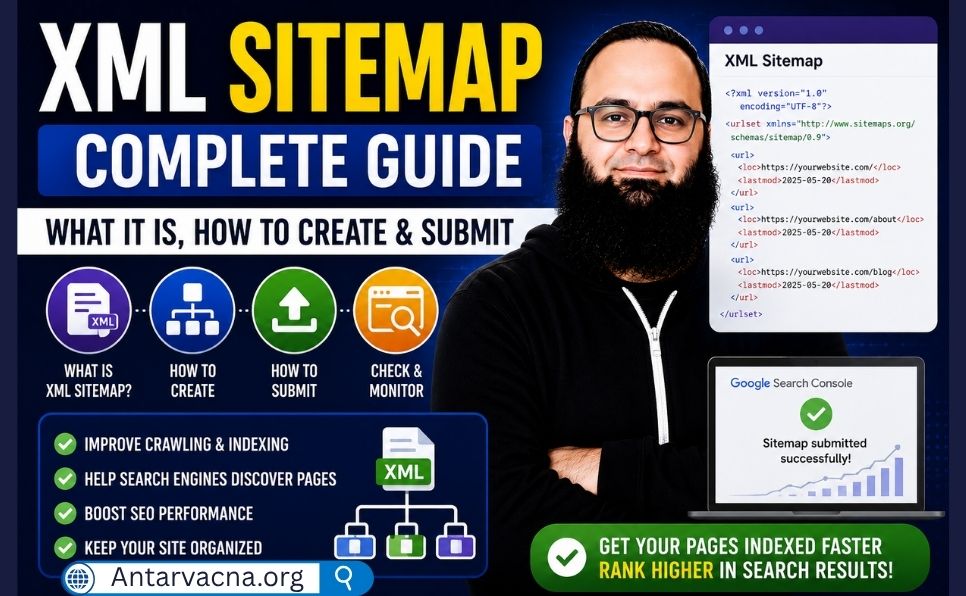
An XML sitemap is a file that lists all the important URLs on your website and provides additional information about each page — such as when it was last updated, how often it changes, and how important it is relative to other pages.
Think of it as a roadmap for search engines. Instead of waiting for Google to discover your pages by following links, your sitemap hands Google a complete, organized list of every page you want indexed.
What Does an XML Sitemap Look Like?
Here’s a simplified example of what an XML sitemap contains:
<?xml version="1.0" encoding="UTF-8"?>
<urlset xmlns="http://www.sitemaps.org/schemas/sitemap/0.9">
  <url>
    <loc>https://antarvacna.org/keyword-research-for-beginners/</loc>
    <lastmod>2026-04-22</lastmod>
    <changefreq>monthly</changefreq>
    <priority>0.8</priority>
  </url>
  <url>
    <loc>https://antarvacna.org/on-page-seo-complete-guide/</loc>
    <lastmod>2026-04-24</lastmod>
    <changefreq>monthly</changefreq>
    <priority>0.8</priority>
  </url>
</urlset>
Each entry contains:
- loc — the full URL of the page
- lastmod — when the page was last modified
- changefreq — how often the page changes
- priority — relative importance (0.0 to 1.0)

XML Sitemap vs. HTML Sitemap
| Feature | XML Sitemap | HTML Sitemap |
|---|---|---|
| Audience | Search engines | Human visitors |
| Format | Machine-readable XML | Regular webpage |
| Purpose | Help Google find pages | Help users navigate |
| SEO Impact | Direct — helps indexing | Indirect |
| Required? | Yes — for SEO | Optional |
Why Is an XML Sitemap Important for SEO?
1. Helps Google Discover Pages Faster
Without a sitemap, Google discovers pages by following links. New pages with few internal links can take weeks to be discovered. A sitemap tells Google about them immediately.
2. Essential for Large Websites
The more pages your site has, the harder it is for Google to crawl everything. A sitemap ensures no important page gets missed.
3. Provides Important Metadata
Your sitemap tells Google when pages were last updated — so Google knows to recrawl them when content changes.
4. Critical for New Websites
New websites with few backlinks depend heavily on sitemaps for initial indexing. Without one, Google may take months to find your content.
5. Helps After Major Site Changes
If you delete spam content, restructure your site, or recover from a penalty — resubmitting an updated sitemap helps Google understand the new structure quickly.
💡 A sitemap does not guarantee indexing — but it significantly increases the speed and completeness of Google’s crawling of your site.
📖 If pages still aren’t indexing after sitemap submission, read: Crawled Currently Not Indexed — Complete Fix Guide
Types of XML Sitemaps
1. Standard XML Sitemap
Lists all your regular web pages — blog posts, static pages. Most important one.
2. Sitemap Index File
A master sitemap linking to multiple individual sitemaps. Used for large sites. Example: https://antarvacna.org/sitemap_index.xml
3. Image Sitemap
Lists all images — helps Google index them in Image Search.
4. Video Sitemap
Lists all video content — helps Google display videos in search results.
5. News Sitemap
For Google News approved sites only — lists articles from the last 48 hours.
How to Create an XML Sitemap in WordPress
Method 1: Using RankMath SEO (Easiest — Recommended)
Step 1: Enable Sitemap
WordPress Admin → RankMath →
Modules → Sitemap →
Toggle ON (blue)
Step 2: Configure Sitemap Settings
RankMath → Sitemap Settings
| Setting | Recommended Value |
|---|---|
| Posts | ✅ Include |
| Pages | ✅ Include |
| Categories | ❌ Exclude |
| Tags | ❌ Exclude |
| Authors | ❌ Exclude |
| Media/Attachments | ❌ Exclude |
| Noindex pages | ❌ Exclude |
Step 3: Find Your Sitemap URL
RankMath → Sitemap Settings →
Your sitemap URL:
https://antarvacna.org/sitemap_index.xml
Step 4: Verify It’s Working Open your sitemap URL in a browser. You should see an organized XML file. If it loads — your sitemap is working.
Method 2: Using Yoast SEO
WordPress Admin → Yoast SEO →
General → Features tab →
XML Sitemaps → Toggle ON
Your Yoast sitemap URL:
https://antarvacna.org/sitemap.xml
Configure what to include:
Yoast SEO → Search Appearance →
Content Types tab →
For each type set "Show in search results"
and "Include in sitemap"
Method 3: Free Online Generator (Non-WordPress Sites)
| Tool | URL | Best For |
|---|---|---|
| XML-Sitemaps.com | xml-sitemaps.com | Small sites up to 500 pages |
| Screaming Frog | screamingfrog.co.uk | Up to 500 URLs free |
Steps:
- Go to xml-sitemaps.com
- Enter your website URL
- Click “Start”
- Download the sitemap.xml file
- Upload to your website’s root directory via FTP
How to Submit Your XML Sitemap to Google
Step 1: Open Google Search Console
Go to search.google.com/search-console
Step 2: Go to Sitemaps
Left sidebar → Indexing → Sitemaps
Step 3: Submit Your Sitemap
"Add a new sitemap" box →
Enter your sitemap URL:

RankMath users: sitemap_index.xml
Yoast users: sitemap.xml

→ Click "Submit"
Step 4: Verify Submission
After submission you’ll see:
- Status: Success ✅
- Discovered URLs: Number of pages found
- Last read: When Google last fetched your sitemap
Step 5: Monitor Your Sitemap
| Metric | What to Watch |
|---|---|
| Discovered URLs | Should match your total published pages |
| Indexed URLs | How many pages are actually indexed |
| Errors | Any fetch or parsing errors |
⚠️ If “Discovered” is much higher than “Indexed” — you have a content quality or site trust issue that needs fixing.
📖 Learn how to use GSC properly: Google Search Console Complete Guide
How to Submit Sitemap to Bing
Don’t forget Bing — free and takes 2 minutes:
Step 1: Go to bing.com/webmasters
Step 2: Sign in with Microsoft account
Step 3: Add your website
Step 4: Go to Sitemaps section
Step 5: Enter sitemap URL → Submit
Add Your Sitemap to Robots.txt
This helps ALL search engines find your sitemap automatically:
Add this line at the bottom of robots.txt:
Sitemap: https://antarvacna.org/sitemap_index.xml
Edit robots.txt in WordPress via RankMath:
RankMath → General Settings →
Edit robots.txt →
Add sitemap line → Save
What Pages to Include and Exclude
✅ Always Include:
- All published blog posts
- Important static pages (About, Contact, Services)
- Homepage
- Product pages (if eCommerce)
- Location pages (if local business)
❌ Never Include:
- Admin pages (wp-admin)
- Login/logout pages
- Thank you pages
- Pages with noindex tags
- Paginated pages (page/2/, page/3/)
- Tag and author archive pages
- Duplicate content pages
- Thin content or low-quality pages
- 404 error pages
- Pages with canonical tags pointing elsewhere
💡 Quality over quantity: A sitemap with 50 high-quality pages is far better than one with 500 mixed-quality pages. Google uses your sitemap to judge overall site quality.
Sitemap Priority and Changefreq Settings
Priority Settings:
| Page Type | Priority |
|---|---|
| Homepage | 1.0 |
| Main category pages | 0.8 |
| Important blog posts | 0.8 |
| Regular blog posts | 0.6 |
| Older/less important posts | 0.4 |
Changefreq Settings:
| Page Type | Changefreq |
|---|---|
| Homepage | daily |
| Active blog posts | weekly |
| Stable blog posts | monthly |
| Static pages | yearly |
Sitemap + Internal Linking = Maximum Impact
Your sitemap and internal linking work together. While your sitemap tells Google what pages exist, internal links tell Google how important each page is.
Pages with many internal links are seen as more important — Google prioritizes crawling and indexing them faster.
📖 Build powerful internal links alongside your sitemap: Internal Linking Strategy for SEO — Complete Guide
Your Post-Publishing Workflow
Every time you publish a new article, follow this:
Step 1: Publish article in WordPress
         ↓
Step 2: RankMath/Yoast auto-updates sitemap
         ↓
Step 3: GSC → URL Inspection →
        Paste new URL →
        "Request Indexing"
         ↓
Step 4: Wait 3-7 days →
        Check indexing status in GSC
         ↓
Step 5: Not indexed after 2 weeks?
        Check content quality →
        Improve → Request again
📖 Complete strategy for faster indexing: How to Get Your Website Indexed Faster on Google
Common Sitemap Mistakes to Avoid
❌ Mistake 1: Not Having a Sitemap
Every website — no matter how small — should have an XML sitemap submitted to GSC.
❌ Mistake 2: Including Low-Quality Pages
Tag pages, author pages, paginated pages, and thin content pages signal to Google that your site has low-value content.
❌ Mistake 3: Not Submitting to GSC
Creating a sitemap without submitting it defeats the purpose. Always submit it.
❌ Mistake 4: Including Noindex Pages
Never include pages in your sitemap that have a noindex tag — it sends Google a contradictory signal.
❌ Mistake 5: Outdated Sitemap
If your sitemap lists deleted pages, Google wastes crawl budget on URLs that don’t exist.
❌ Mistake 6: Wrong Sitemap URL in GSC
Always verify your sitemap URL by opening it in a browser before submitting to GSC.
❌ Mistake 7: Ignoring Sitemap Errors
Check your GSC sitemap report at least once a month and fix any issues immediately.
📖 For complete technical SEO health: Technical SEO Checklist
Complete XML Sitemap Checklist
Creation
- XML sitemap created (via RankMath, Yoast, or plugin)
- Sitemap URL confirmed and accessible in browser
- Only quality pages included (posts, important pages)
- Low-quality pages excluded (tags, authors, pagination)
- Noindex pages excluded from sitemap
- Deleted/404 pages not in sitemap
Submission
- Sitemap submitted to Google Search Console
- Sitemap submitted to Bing Webmaster Tools
- Sitemap URL added to robots.txt
Monitoring
- GSC Sitemap report — Status: Success ✅
- Discovered vs. Indexed numbers reviewed
- No sitemap errors in GSC
- Sitemap checked monthly
Ongoing
- Sitemap auto-updates when new content published
- Sitemap resubmitted after major site changes
- Deleted pages removed from sitemap immediately
Conclusion — Your XML Sitemap Is Google’s GPS to Your Website
An XML sitemap is one of the simplest yet most impactful technical SEO improvements you can make. It takes less than 30 minutes to set up — and the benefits last for the entire life of your website.
Your immediate action plan:
- Enable RankMath or Yoast sitemap — takes 2 minutes
- Configure sitemap settings — include only quality pages
- Find your sitemap URL —
sitemap_index.xmlorsitemap.xml - Submit to Google Search Console — takes 2 minutes
- Submit to Bing Webmaster Tools — don’t skip this
- Add sitemap to robots.txt — helps all search engines
- Monitor monthly — check for errors in GSC
Do this today and Google will crawl your site more efficiently — leading to faster indexing and better rankings.
Frequently Asked Questions (FAQ)
Does every website need an XML sitemap?
Yes — every website benefits from an XML sitemap regardless of size. For small sites with strong internal linking, Google might find all pages without one — but a sitemap always helps and never hurts.
How many URLs can an XML sitemap contain?
A single XML sitemap file can contain a maximum of 50,000 URLs and must be under 50MB. If your site exceeds this, use a sitemap index file referencing multiple individual sitemaps.
How often should I resubmit my sitemap?
If using RankMath or Yoast, you don’t need to resubmit manually — Google fetches it automatically. Resubmit manually after major site restructuring or adding large batches of new content.
Why does my sitemap show more URLs than are indexed?
This is the “Discovered vs. Indexed” gap. Google found your pages but chose not to index them — usually due to thin content, low site authority, or too many low-quality pages. Focus on improving content quality and building backlinks.
Should I include category and tag pages in my sitemap?
For most blogs, no. Category and tag pages rarely rank well and often have thin content. Excluding them keeps your sitemap focused on high-quality pages.
Can a bad sitemap hurt my SEO?
Yes — a sitemap full of low-quality, duplicate, or deleted pages can hurt your SEO by signaling poor content quality to Google. Always keep your sitemap clean and focused on your best pages.
Found this guide helpful? Share it with a fellow blogger. Have a question about XML sitemaps? Drop it in the comments — we answer every one!