Your website is down. Your email is bouncing. cPanel is throwing an error you’ve never seen before. And your visitors can’t reach your site.
Sound familiar?
cPanel is the world’s most popular web hosting control panel — powering millions of websites globally. But even the most reliable systems encounter errors. When they do, you need to know exactly what’s wrong and how to fix it — fast.
In this complete webmaster’s survival guide, you’ll learn:
- The most common cPanel errors and what causes them
- Step-by-step fixes for each error type
- How to use cPanel’s built-in tools to diagnose problems
- When to contact your hosting provider
- How to prevent errors before they happen
Let’s get your website back online. 👇
Understanding cPanel Error Types
Before diving into specific fixes, it helps to understand where cPanel errors come from:
| Error Category | Common Causes |
|---|---|
| HTTP errors (4xx, 5xx) | Server misconfigurations, PHP issues, .htaccess problems |
| Database errors | Corrupt tables, wrong credentials, connection limits |
| Email errors | Wrong settings, blacklisted IPs, spam filters |
| SSL errors | Expired certificates, wrong installation, mixed content |
| File permission errors | Wrong chmod settings, ownership issues |
| Resource limit errors | CPU/RAM limits exceeded, too many processes |
| WordPress-specific errors | Plugin conflicts, memory limits, corrupt files |
📖 Understanding your hosting setup helps diagnose errors faster: What Is Web Hosting? Complete Beginner’s Guide

Error 1: 500 Internal Server Error
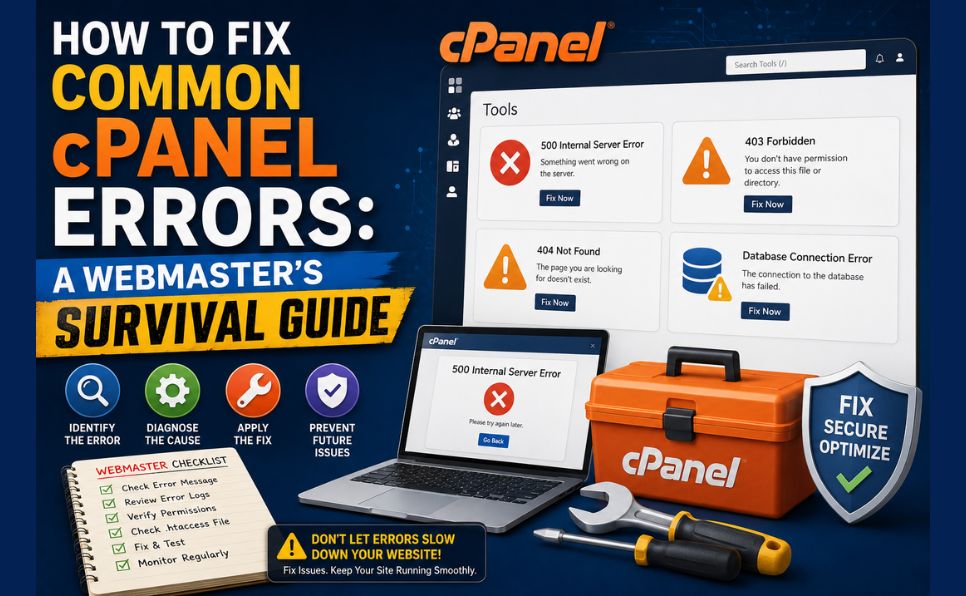
The 500 Internal Server Error is the most common and most dreaded cPanel error. It means something went wrong on the server — but the server can’t tell you exactly what.
Common Causes:
- Corrupt or incorrect .htaccess file
- PHP memory limit too low
- File permission errors
- Plugin or theme conflict (WordPress)
- Syntax error in PHP code
- Timeout on a long-running script
How to Fix It:
Step 1 — Check Error Logs
The error log tells you exactly what went wrong:
cPanel → Metrics → Errors
OR
cPanel → File Manager → public_html → .htaccess → error_log
Read the last few lines — the error message usually points directly to the cause.
Step 2 — Fix .htaccess Issues
Rename your .htaccess file temporarily:
cPanel → File Manager → public_html →
Right-click .htaccess → Rename →
Change to: .htaccess_backup
Refresh your site. If the error disappears — your .htaccess file was the problem.
For WordPress: Go to Settings → Permalinks → Save Changes. This regenerates a clean .htaccess file.
Step 3 — Increase PHP Memory Limit
Add this line to your wp-config.php (WordPress) or php.ini:
define('WP_MEMORY_LIMIT', '256M');Or in cPanel:
cPanel → Software → PHP Selector → Options →
memory_limit → Set to 256M → Save
Step 4 — Fix File Permissions
Correct permissions for web files:
Folders: 755
Files: 644
wp-config.php: 440 or 400
In cPanel → File Manager → Select folder → Permissions → Set correctly.
Step 5 — Deactivate Plugins (WordPress)
Via File Manager:
cPanel → File Manager → public_html/wp-content/plugins →
Rename folder to: plugins_disabled
If site loads — a plugin caused the error. Rename back and deactivate plugins one by one.
Error 2: 403 Forbidden Error
A 403 Forbidden error means the server understands the request but refuses to authorize it — usually a permissions problem.
Common Causes:
- Wrong file or folder permissions
- Blocked IP address
- .htaccess rules blocking access
- Missing index file in directory
- Hotlinking protection blocking requests
How to Fix It:
Step 1 — Check File Permissions
cPanel → File Manager → public_html →
Right-click → Change Permissions →
Folder: 755 | Files: 644
Step 2 — Check .htaccess for Blocking Rules
cPanel → File Manager → public_html →
Open .htaccess → Look for:
deny from all
Order deny,allow
Remove or comment out any rules blocking your IP.
Step 3 — Check IP Blocking
cPanel → Security → IP Blocker →
Check if your IP is listed →
Remove if found
Step 4 — Ensure Index File Exists
Every directory needs an index file (index.php, index.html). If missing, you’ll see 403 instead of a directory listing.
Error 3: 404 Not Found Error
A 404 error means the page doesn’t exist — either it was deleted, moved, or the URL is wrong.
Common Causes:
- Page or post deleted without redirect
- Wrong permalink settings
- Moved files without updating links
- Mistyped URL
How to Fix It:
Step 1 — Fix WordPress Permalinks
WordPress Admin → Settings → Permalinks →
Click "Save Changes" (no need to change anything)
This regenerates the .htaccess file and fixes most 404 errors on WordPress.
Step 2 — Set Up 301 Redirects
For permanently moved pages, set up redirects:
cPanel → Domains → Redirects →
Type: 301 (Permanent)
Redirect: /old-page-url
To: https://yourdomain.com/new-page-url
Or use the Redirection plugin in WordPress for easier management.
Step 3 — Check File Manager
Verify the file actually exists at the expected path in File Manager.
📖 404 errors also hurt your indexing — learn how to recover: Crawled Currently Not Indexed — Complete Fix Guide
Error 4: Database Connection Error
“Error Establishing a Database Connection” is a critical WordPress error that means your site can’t connect to its MySQL database.
Common Causes:
- Wrong database credentials in wp-config.php
- Database server down or overloaded
- Database user lacks privileges
- Corrupt database tables
- MySQL connection limit reached
How to Fix It:
Step 1 — Verify Database Credentials
cPanel → File Manager → public_html →
Open wp-config.php → Check:

define('DB_NAME', 'your_database_name');
define('DB_USER', 'your_database_user');
define('DB_PASSWORD', 'your_password');
define('DB_HOST', 'localhost');
Compare these against:
cPanel → Databases → MySQL Databases →
Verify database name, user, and privileges
Step 2 — Repair Database Tables
cPanel → Databases → phpMyAdmin →
Select your WordPress database →
Select all tables →
"With Selected" dropdown →
Choose "Repair table"
Step 3 — Check MySQL Service
If the database is down entirely, contact your hosting provider — MySQL service may need to be restarted at the server level.
Step 4 — Increase MySQL Connection Limit
If hitting connection limits, ask your host to increase max_connections or upgrade to a plan with higher database limits.
Error 5: Email Not Working / Email Delivery Issues
Email problems are among the most frustrating cPanel issues — especially for business websites.
Common Causes:
- Wrong SMTP/IMAP settings in email client
- IP address blacklisted
- Missing SPF, DKIM, or DMARC records
- Email account over quota
- Spam filters blocking outgoing mail
How to Fix It:
Step 1 — Verify Email Settings
Correct cPanel email settings:
Incoming Mail (IMAP):
Server: mail.yourdomain.com
Port: 993 (SSL) or 143 (non-SSL)

Outgoing Mail (SMTP):
Server: mail.yourdomain.com
Port: 465 (SSL) or 587 (STARTTLS)
Authentication: Required
Find exact settings in:
cPanel → Email → Email Accounts →
Click "Connect Devices" next to your email account
Step 2 — Check Email Quota
cPanel → Email → Email Accounts →
Check disk usage next to each account →
Increase quota or delete old emails
Step 3 — Add SPF, DKIM, and DMARC Records
Missing email authentication records cause many delivery failures:
cPanel → Email → Email Deliverability →
Click "Repair" for each domain →
This automatically fixes SPF and DKIM records
Step 4 — Check IP Blacklist
Check if your server IP is blacklisted at MXToolbox Blacklist Check.
If blacklisted, contact your hosting provider — they can request delisting or provide a new IP.
Step 5 — Review Mail Queue
cPanel → Email → Track Delivery →
Check for bounced or deferred messages →
Review error messages for specific causes
Error 6: SSL Certificate Errors
SSL errors break HTTPS — showing visitors a “Not Secure” warning that destroys trust and hurts SEO.
Common Causes:
- Expired SSL certificate
- SSL not installed correctly
- Mixed content (HTTP images on HTTPS page)
- Wrong domain on certificate
- SSL not renewed automatically
How to Fix It:
Step 1 — Check Certificate Expiry
cPanel → Security → SSL/TLS →
Manage SSL Sites →
Check expiration date
Step 2 — Reinstall Free SSL (Let’s Encrypt)
cPanel → Security → SSL/TLS →
Let's Encrypt →
Issue/Renew certificate for your domain
Step 3 — Fix Mixed Content Issues
Mixed content occurs when an HTTPS page loads HTTP resources (images, scripts).
WordPress fix:
- Install Really Simple SSL plugin — fixes most mixed content automatically
- Or run a search-replace in database:
cPanel → Databases → phpMyAdmin →
Select database → SQL tab → Run:
UPDATE wp_options SET option_value = replace(option_value, 'http://yourdomain.com', 'https://yourdomain.com') WHERE option_name = 'home' OR option_name = 'siteurl';
Step 4 — Force HTTPS via .htaccess
Add to your .htaccess file:
RewriteEngine On
RewriteCond %{HTTPS} off
RewriteRule ^(.*)$ https://%{HTTP_HOST}%{REQUEST_URI} [L,R=301]
📖 Learn why SSL matters for SEO and rankings: Technical SEO Checklist
Error 7: Disk Space Full
When your hosting account runs out of disk space, websites stop functioning, emails bounce, and databases can’t write new data.
Common Causes:
- Too many email attachments stored
- Large number of backup files
- Log files growing unchecked
- Uploaded media files accumulating
- Too many WordPress post revisions stored
How to Fix It:
Step 1 — Check Disk Usage
cPanel → Files → Disk Usage →
Identify which folders are consuming most space
Step 2 — Clean Up Email
cPanel → Email → Email Accounts →
Delete old emails in Webmail →
Or reduce email quota to force cleanup
Step 3 — Remove Old Backups
cPanel → Files → Backup Wizard →
Check for old backup files in /public_html →
Delete unneeded backups
Step 4 — Clear Log Files
cPanel → File Manager → Navigate to /logs →
Delete or compress old log files
Step 5 — Optimize WordPress Database
cPanel → Databases → phpMyAdmin →
Select database → Operations tab →
Optimize Database
Or use the WP-Optimize plugin for automated database cleanup.
Error 8: Resource Limit Exceeded / CPU Throttling
Shared hosting plans have CPU and memory limits. When exceeded, your site slows dramatically or shows error pages.
Common Causes:
- High traffic spike
- Inefficient WordPress plugins
- Runaway PHP processes
- No caching configured
- Malware using server resources
How to Fix It:
Step 1 — Check Resource Usage
cPanel → Metrics → Resource Usage (Awstats) →
OR
cPanel → CPU and Concurrent Connection Usage
Step 2 — Install Caching
Caching dramatically reduces CPU usage by serving pre-built pages:
- Install WP Rocket or W3 Total Cache
- Enable page caching, browser caching, and GZIP compression
Step 3 — Identify Resource-Heavy Plugins
Deactivate plugins one by one to identify CPU-heavy ones. Common offenders:
- Backup plugins running too frequently
- Security plugins scanning too aggressively
- Poorly coded contact form plugins
Step 4 — Upgrade Hosting Plan
If you’re consistently hitting resource limits, your site has outgrown shared hosting. Consider upgrading to VPS or cloud hosting.
📖 Know when to upgrade your hosting: Shared Hosting vs VPS vs Cloud Hosting: Which to Choose
Error 9: WordPress White Screen of Death (WSOD)
The White Screen of Death — a completely blank white page — is a WordPress-specific error that can be caused by several issues.
Common Causes:
- PHP memory limit too low
- Plugin or theme conflict
- Syntax error in functions.php
- Corrupt WordPress core files
- PHP version incompatibility
How to Fix It:
Step 1 — Enable WordPress Debug Mode
Add to wp-config.php:
define('WP_DEBUG', true);
define('WP_DEBUG_LOG', true);
define('WP_DEBUG_DISPLAY', false);
Check /wp-content/debug.log for error details.
Step 2 — Deactivate All Plugins
cPanel → File Manager → public_html/wp-content →
Rename "plugins" folder to "plugins_disabled"
If site loads — reactivate plugins one by one to find the culprit.
Step 3 — Switch to Default Theme
cPanel → File Manager →
public_html/wp-content/themes →
Rename your active theme folder →
WordPress will fall back to default theme
Step 4 — Increase PHP Memory
cPanel → Software → PHP Selector →
memory_limit → 256M or higher
Step 5 — Check PHP Version
cPanel → Software → PHP Selector →
Ensure you're running PHP 8.1 or higher →
WordPress 6.x requires PHP 7.4+ minimum
Error 10: Softaculous Installation Failures
When WordPress or other scripts fail to install through Softaculous:
Common Causes:
- Database creation failure
- Insufficient disk space
- Wrong file permissions on public_html
- PHP extension missing
- Conflicting existing files
How to Fix It:
Step 1 — Check Disk Space
Ensure you have at least 100MB free before installation.
Step 2 — Verify public_html Permissions
cPanel → File Manager → public_html →
Right-click → Permissions → Set to 755
Step 3 — Clear Previous Failed Installation
If a previous failed install left partial files:
cPanel → File Manager → public_html →
Delete any partial WordPress files →
Retry installation
Step 4 — Create Database Manually
cPanel → Databases → MySQL Databases →
Create new database manually →
Then run Softaculous installation pointing to this database
How to Use cPanel’s Built-In Diagnostic Tools
cPanel provides several powerful tools for diagnosing problems before calling support:
Error Logs
cPanel → Metrics → ErrorsShows the last 300 PHP and Apache errors on your account.
MySQL Databases — Repair
cPanel → Databases → MySQL Databases →
Repair Database button
Email Deliverability
cPanel → Email → Email Deliverability →
Checks and fixes SPF, DKIM, DMARC automatically
Domain Health Check
cPanel → Domains → Zone Editor →
Verify DNS records are correct
PHP Configuration
cPanel → Software → PHP Selector →
Change PHP version, extensions, and options
Prevention: How to Avoid cPanel Errors
Prevention is always better than emergency fixes:
| Prevention Step | How to Do It |
|---|---|
| Regular backups | cPanel → Backup Wizard → Schedule daily backups |
| Monitor disk space | Set email alerts when disk reaches 80% |
| Keep software updated | Update WordPress, themes, and plugins weekly |
| Monitor uptime | Use UptimeRobot (free) for real-time alerts |
| Use staging environment | Test changes before applying to live site |
| Limit plugin count | Every plugin adds risk — keep only essentials |
| Review error logs weekly | Catch problems before they become outages |
| Renew SSL early | Set calendar reminder 30 days before expiry |
📖 Monitor your site’s indexing and technical health regularly: Google Search Console Complete Guide
When to Contact Your Hosting Provider
Some errors are beyond what you can fix in cPanel:
Contact support immediately if:
- MySQL service is completely down
- Server-level PHP configuration needs changing
- Your IP has been blacklisted and needs delisting
- Hardware failure affecting your server
- DDoS attack overwhelming your hosting
- You’ve tried all fixes and the error persists
Before contacting support, have ready:
- Your domain name and hosting account username
- The exact error message (screenshot if possible)
- Error log entries (copy and paste)
- Steps you’ve already tried
- When the problem started
Good hosting providers like Hostinger, Bluehost, and SiteGround offer 24/7 live chat support — use it when you’re stuck.
Complete cPanel Error Fix Checklist
Before Anything:
- Check cPanel → Metrics → Errors for specific error messages
- Note exactly when the error started
- Check if all pages are affected or just specific ones
500 Internal Server Error:
- Read error log for specific cause
- Rename .htaccess and test
- Check file permissions (755/644)
- Increase PHP memory limit
- Deactivate plugins/themes
403 Forbidden:
- Fix file/folder permissions
- Check IP blocker
- Review .htaccess for deny rules
- Ensure index file exists
Database Errors:
- Verify wp-config.php credentials
- Repair database tables in phpMyAdmin
- Check MySQL connection limit
Email Issues:
- Verify SMTP/IMAP settings
- Check email quota
- Run Email Deliverability repair tool
- Check IP blacklist status
SSL Errors:
- Check certificate expiry
- Reinstall Let’s Encrypt certificate
- Fix mixed content issues
- Force HTTPS via .htaccess
Conclusion — Stay Calm and Fix Systematically
cPanel errors look scary but are almost always fixable. The key is to stay calm, read the error message carefully, and work through potential causes systematically.
Your error-fixing process:
- Read the error message exactly
- Check cPanel error logs for details
- Search the specific error message online
- Work through fixes one at a time
- Test after each fix
- Contact hosting support if stuck
Keep this guide bookmarked — every webmaster encounters these errors eventually. With the right knowledge, what seems like a crisis becomes a quick fix.
Frequently Asked Questions (FAQ)
What is the most common cPanel error?
The 500 Internal Server Error is the most frequently encountered cPanel error. It’s usually caused by a corrupt .htaccess file, wrong file permissions, or a PHP memory limit that’s too low. Checking your error log first almost always reveals the specific cause.
How do I access cPanel error logs?
Go to cPanel → Metrics → Errors to see the last 300 error messages. For more detailed logs, use File Manager to navigate to your domain’s log directory, or check /home/username/logs/ via SSH.
Why does my cPanel email not work after changing hosting?
After migrating hosting, email often breaks because DNS MX records haven’t propagated yet (takes 24–48 hours), or because the new server’s IP isn’t authenticated (missing SPF/DKIM records). Use cPanel’s Email Deliverability tool to automatically fix authentication records.
How do I fix file permission errors in cPanel?
In File Manager, select the affected file or folder, right-click, and choose “Change Permissions.” Set folders to 755 and files to 644. For sensitive files like wp-config.php, use 440 or 400 for better security.
What should I do if cPanel itself won’t load?
If cPanel is inaccessible, first try accessing it via different URL formats (yourdomain.com/cpanel, yourdomain.com:2083, or your server’s IP:2083). If still inaccessible, contact your hosting provider — cPanel may be down for maintenance or your account may have been suspended.
How do I prevent the 500 error from happening again?
The most effective prevention measures are: keeping all WordPress plugins and themes updated, never editing theme files directly (use a child theme), always testing changes on a staging site first, maintaining daily backups, and monitoring your error logs weekly to catch small issues before they become major errors.
Found this guide helpful? Bookmark it for the next time you encounter a cPanel error. Questions about a specific error not covered here? Drop it in the comments — we answer every one!