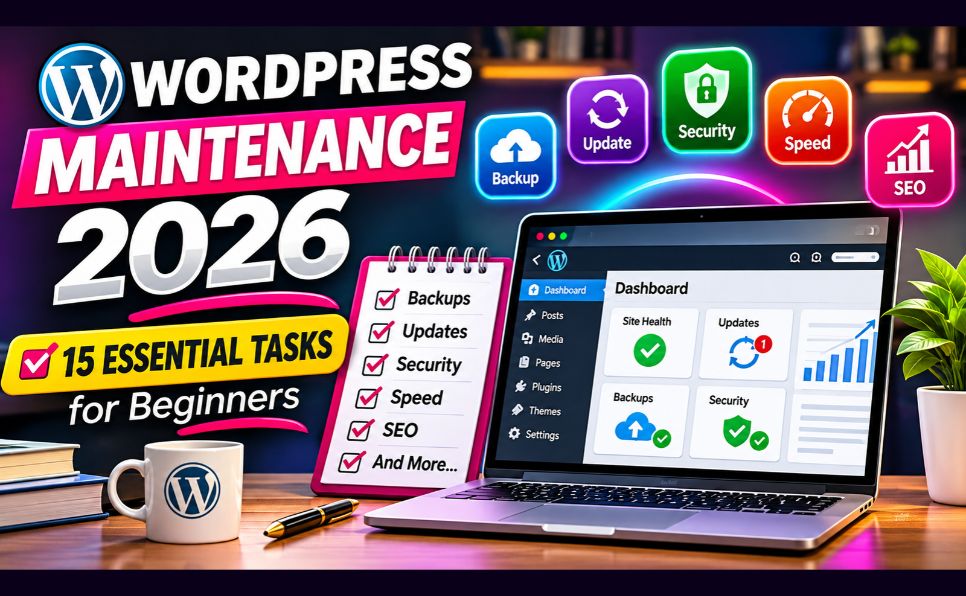
WordPress Website Maintenance Checklist 2026: 15 Essential Tasks for Beginners
Running a WordPress website involves more than publishing articles and installing plugins. Your website also needs regular maintenance to remain secure, accessible, fast, and reliable.
Outdated plugins, missing backups, broken links, and technical errors can affect visitors, interrupt website functionality, and create unnecessary security risks.
Whether you manage a personal blog, business website, affiliate site, or online store, following a structured WordPress maintenance checklist can help you identify problems before they become more serious.
In this guide, you’ll learn 15 essential WordPress website maintenance tasks, how often to perform them, which tools can help, and how to create a practical maintenance schedule for 2026.
What Is WordPress Website Maintenance?
WordPress website maintenance is the process of regularly checking, updating, securing, backing up, and optimizing a WordPress website.
It involves both technical and content-related activities.
Common maintenance tasks include:
- Updating WordPress core, themes, and plugins
- Creating and testing website backups
- Monitoring website security
- Checking website speed and performance
- Fixing broken links and 404 errors
- Reviewing Google Search Console reports
- Optimizing images and databases
- Updating outdated content
- Checking website forms and important features
The goal is to keep your website functioning correctly while providing a reliable experience for visitors.
Why Is WordPress Maintenance Important in 2026?
WordPress websites depend on multiple components, including the WordPress core software, themes, plugins, databases, hosting infrastructure, and third-party services.
These components change over time.
Regular maintenance helps address five important areas.
1. Website Security
Outdated software can contain known vulnerabilities. Keeping WordPress components updated helps reduce avoidable security risks.
2. Website Performance
Large images, inefficient plugins, unnecessary scripts, and hosting limitations can affect loading speed.
3. User Experience
Broken pages, malfunctioning forms, confusing navigation, and display errors can frustrate visitors.
4. Search Engine Accessibility
Incorrect indexing settings, broken internal links, server errors, and redirect problems can interfere with search engine crawling.
5. Business Continuity
Reliable backups and a tested recovery process can reduce the impact of technical failures.
WordPress maintenance does not guarantee better Google rankings, but it supports the technical foundation of a healthy website.
WordPress Maintenance Checklist: Quick Overview
| No. | Maintenance task | Suggested frequency |
|---|---|---|
| 1 | Back up your website | Daily or weekly, depending on activity |
| 2 | Update WordPress core | Check weekly and act promptly on security updates |
| 3 | Update plugins and themes | Weekly and when security fixes are released |
| 4 | Check website security | Weekly |
| 5 | Test website speed | Monthly and after major changes |
| 6 | Check broken links and 404 errors | Monthly |
| 7 | Review Google Search Console | Weekly |
| 8 | Optimize database and revisions | Monthly or quarterly |
| 9 | Review images and media | Monthly |
| 10 | Test contact forms and key features | Monthly |
| 11 | Review hosting, SSL, and DNS | Monthly |
| 12 | Check mobile usability and accessibility | Monthly |
| 13 | Update old content and internal links | Monthly |
| 14 | Review users, permissions, and passwords | Quarterly |
| 15 | Test backup restoration and recovery | Quarterly or after major changes |
These frequencies are practical starting points, not universal requirements. High-traffic stores and frequently updated websites may need more frequent monitoring.
1. Create Regular WordPress Backups
A reliable backup is one of the most important parts of WordPress maintenance.
Backups help you recover from accidental changes, failed updates, hosting problems, data corruption, or security incidents.
What Should a WordPress Backup Include?
A complete backup should include:
- WordPress database
- Themes and plugins
- Uploaded images and media
- WordPress configuration files
- Custom code and website files
- Other necessary application data
Backing up only the WordPress files is not sufficient because posts, pages, settings, and other important information are stored in the database.
How to Back Up Your Website
Method 1: Hosting Control Panel
Many hosting providers offer backup tools through their dashboards or cPanel.
Check whether your hosting plan includes automated backups and how long backup copies are retained.
Method 2: WordPress Backup Plugin
Backup plugins can automate backup creation and, depending on the plugin, send copies to external storage.
Examples include UpdraftPlus and Duplicator.
Method 3: Manual Backup
Experienced administrators can export the database and download website files using cPanel, SFTP, or other appropriate tools.
WordPress Backup Best Practices
- Schedule backups based on website activity.
- Keep multiple recent restore points.
- Store at least one copy outside the production hosting environment.
- Protect backup files from unauthorized access.
- Test restoration periodically.
- Create a backup before major updates.
For an active online store, daily backups or more frequent database protection may be appropriate.
For a small blog updated occasionally, weekly backups may be sufficient.
Official reference: WordPress Backup Documentation
2. Keep WordPress Core Updated
WordPress releases updates to introduce improvements, address bugs, and fix security vulnerabilities.
Running outdated core software can increase security and compatibility risks.
How to Update WordPress
- Log in to your WordPress dashboard.
- Navigate to Dashboard → Updates.
- Check whether a WordPress core update is available.
- Review the update information.
- Confirm you have a current backup.
- Check plugin and theme compatibility.
- Apply the update.
- Test important website functionality afterward.
WordPress supports automatic background updates in certain configurations, but administrators should still monitor update status.
What to Check After Updating
Open your website and verify:
- Homepage appearance
- Navigation menus
- Important pages
- Contact forms
- Login functionality
- Plugin-dependent features
- Mobile layout
If an update causes problems, use the appropriate troubleshooting or recovery procedure rather than repeatedly applying changes without investigation.
Official guide: Updating WordPress
3. Update WordPress Plugins and Themes
Plugins and themes extend WordPress functionality, but outdated or poorly maintained extensions can introduce compatibility and security problems.
How to Review Plugin Updates
Navigate to:
WordPress Dashboard → Plugins → Installed Plugins
Review:
- Available updates
- Plugin compatibility
- Developer maintenance activity
- Unused plugins
- Security notices
- Duplicate functionality
Best Practices for Plugin Maintenance
Remove unnecessary plugins.
Unused plugins can increase administrative overhead and may create additional security exposure.
Check compatibility before major updates.
Some plugins depend on specific WordPress or PHP versions.
Use a staging environment for significant changes.
A staging website lets you test updates before applying them to your live website.
Avoid installing multiple plugins for the same function without a clear reason.
For example, running overlapping SEO or caching configurations can cause conflicts.
Theme Maintenance
Update your active theme and review any inactive themes that remain installed.
If you use a child theme, verify that parent theme updates do not interfere with custom functionality.
Avoid modifying parent theme files directly when those changes would be overwritten by updates.
4. Perform Regular WordPress Security Checks
Website security requires ongoing attention.
No single plugin or setting can guarantee complete protection.
Essential WordPress Security Checklist
- Use strong, unique passwords.
- Enable multi-factor authentication where available.
- Keep WordPress, plugins, and themes updated.
- Remove unused accounts.
- Review administrator permissions.
- Use HTTPS.
- Monitor suspicious login activity.
- Avoid untrusted themes and plugins.
- Maintain recoverable backups.
- Review security alerts from your hosting provider.
Review User Permissions
Go to:
WordPress Dashboard → Users → All Users
Check whether every user still requires access.
Assign the minimum permissions necessary for each person’s responsibilities.
For example, a content writer may need an Author or Editor role rather than full Administrator access.
Protect Your Hosting Account
WordPress security also depends on the hosting environment.
Protect hosting credentials, use secure file transfer methods, and keep server software maintained.
Official reference: WordPress Security Handbook
5. Monitor WordPress Website Speed
Website speed affects usability and can influence how comfortably visitors interact with your content.
Performance should be evaluated using real measurements rather than assumptions.
Free Website Speed Testing Tools
Google PageSpeed Insights
Chrome DevTools
https://developer.chrome.com/docs/devtools/
Google Search Console
https://search.google.com/search-console/
Important Core Web Vitals
| Metric | What it measures | Good threshold |
|---|---|---|
| Largest Contentful Paint (LCP) | Main content loading | 2.5 seconds or less |
| Interaction to Next Paint (INP) | Interaction responsiveness | 200 milliseconds or less |
| Cumulative Layout Shift (CLS) | Visual stability | 0.1 or less |
These thresholds are evaluated using the 75th percentile of relevant real-user page loads.
Common WordPress Speed Problems
- Oversized images
- Slow hosting responses
- Excessive third-party scripts
- Inefficient plugins
- Poor caching configuration
- Unoptimized fonts
- Render-blocking resources
- Heavy page layouts
Practical Speed Improvements
Start by measuring performance.
Then prioritize the problems identified by your testing tools.
Possible improvements include:
- Optimizing image sizes
- Using modern image formats
- Configuring appropriate caching
- Reducing unnecessary scripts
- Reviewing plugin overhead
- Improving server response times
- Using a CDN when beneficial
Avoid enabling multiple caching systems without checking compatibility.
Related Antarvacna guide: Page Speed Optimization Guide
6. Find and Fix Broken Links and 404 Errors
Broken links can prevent visitors from reaching useful information.
They may occur when articles are deleted, URLs change, or external websites move their content.
How to Identify Broken Links
You can use:
- Google Search Console
- Website crawling tools
- Server logs
- WordPress link-checking tools
- Manual reviews of important pages
How to Fix Broken Links
If the destination page still exists, correct the link.
If a page has moved permanently, consider a 301 redirect to its relevant replacement.
If content has been permanently removed and there is no appropriate replacement, a 404 or 410 response may be correct.
Do not redirect every missing URL to the homepage.
Why This Matters
A useful 404 page can help visitors return to important sections of your website.
However, a proper 404 status is not automatically an SEO problem requiring a redirect.
Related guide: How to Fix Common cPanel Errors
7. Review Google Search Console and Indexing Status
Google Search Console helps website owners monitor search performance and investigate indexing issues.
Regular checks can reveal important technical problems.
What to Review in Search Console
Navigate to:
Indexing → Pages
Review relevant categories such as:
- Crawled – currently not indexed
- Discovered – currently not indexed
- Not found (404)
- Excluded by noindex
- Duplicate pages
- Redirected pages
- Server errors
Not every excluded URL needs to be indexed.
How to Investigate an Important Nonindexed Page
- Open Google Search Console.
- Select the correct website property.
- Enter the article URL in URL Inspection.
- Review the current indexing status.
- Check the last crawl date.
- Review the Google-selected canonical.
- Run a live URL test when appropriate.
- Confirm whether Google can fetch the page.
- Check whether indexing is allowed.
- Investigate content duplication and technical problems.
What If the Live Test Passes?
A successful live test indicates that Google can likely access the page under current conditions.
It does not guarantee that Google will index it.
Should You Submit Your Sitemap Repeatedly?
No.
If your XML sitemap is valid, accessible, and already submitted successfully, repeatedly submitting the same unchanged sitemap is generally unnecessary.
Sitemaps help search engines discover URLs, but do not guarantee crawling or indexing.
Related Antarvacna resources:
8. Clean and Optimize Your WordPress Database
The WordPress database stores important website information, including posts, pages, settings, comments, and metadata.
Over time, it may accumulate unnecessary data.
Common Database Cleanup Tasks
- Remove unwanted spam comments.
- Review old post revisions.
- Delete unnecessary drafts.
- Clear expired temporary data when appropriate.
- Remove unused plugin data only after verifying it is safe.
- Review unusually large database tables.
Important Precaution
Always create a verified backup before performing database cleanup.
Do not manually delete database tables or run SQL cleanup commands unless you understand their purpose and dependencies.
For larger websites, database maintenance may require professional assistance.
Database cleanup should be based on actual needs rather than performed aggressively on a fixed schedule.
9. Review and Optimize Website Images
Images help explain concepts and improve visual presentation.
However, unnecessarily large or poorly configured images can affect loading performance.
Image Maintenance Checklist
- Review oversized images.
- Use appropriate dimensions.
- Compress images without excessive quality loss.
- Use modern formats when supported.
- Add meaningful alternative text.
- Check for broken image URLs.
- Remove genuinely unused media carefully.
- Verify images display correctly on mobile devices.
Example Image Optimization
Instead of uploading a 4000-pixel-wide image for a small blog thumbnail, prepare an appropriately sized version.
A descriptive filename could be:
wordpress-maintenance-checklist.webp
Useful alt text might be:
“WordPress dashboard showing available plugin and core updates.”
Do not stuff unrelated keywords into image filenames or alt text.
Image Optimization Tools
10. Test Contact Forms and Important Website Features
A website may look normal while important features stop working.
For business websites, a broken contact form can result in missed inquiries.
Monthly Functionality Checklist
Test:
- Contact forms
- Email notifications
- Navigation menus
- Search functionality
- Download buttons
- Login and registration features
- Newsletter signup forms
- Important external links
- E-commerce checkout, if applicable
How to Test a Contact Form
- Open the public contact page.
- Submit a test inquiry.
- Confirm the success or error message.
- Check whether the message reaches the correct inbox.
- Check spam or junk folders.
- Verify any automated confirmation messages.
If notifications fail, investigate the mail configuration, DNS records, SMTP service, and plugin settings.
11. Check Hosting, SSL Certificates, and DNS
WordPress maintenance also includes reviewing the infrastructure that keeps your website online.
Hosting Maintenance Checklist
- Check available storage space.
- Review hosting resource usage.
- Monitor server errors.
- Check backup availability.
- Review PHP compatibility.
- Confirm domain renewal dates.
- Check SSL certificate validity.
- Review DNS settings after changes.
SSL Certificate Checks
Open your website using HTTPS.
Confirm that the browser does not report certificate errors.
Also review whether pages contain mixed content caused by insecure HTTP resources.
Hosting Performance
If your website frequently experiences server errors or slow responses, investigate hosting resources before adding more optimization plugins.
Related guides:
12. Test Mobile Usability and Accessibility
Many visitors browse websites on smartphones.
A website that works well on desktop may still have mobile usability problems.
Mobile Maintenance Checklist
- Text remains readable without zooming.
- Menus open and close correctly.
- Buttons are easy to tap.
- Images fit within the screen.
- Forms are usable.
- Tables do not break the layout.
- Popups do not obstruct important content.
- Navigation remains consistent.
Basic Accessibility Checks
Review:
- Heading structure
- Image alt text
- Text contrast
- Keyboard navigation
- Form labels
- Link descriptions
- Visible focus indicators
Accessibility improvements help make content usable for more people.
Test representative pages rather than assuming that a responsive theme automatically makes every feature accessible.
13. Update Old Content and Improve Internal Linking
Content maintenance is an important part of WordPress website management.
Even technically healthy websites may contain outdated articles, broken references, or confusing navigation.
When to Update an Article
Consider updating content when:
- Software interfaces change.
- Pricing or product features become outdated.
- Official guidance changes.
- Links stop working.
- Important explanations are incomplete.
- Screenshots no longer match the current interface.
- Search Console reveals relevant opportunities.
Avoid changing publication dates without meaningful revisions.
Internal Linking Best Practices
Internal links help readers find related resources.
For example, a WordPress maintenance article can naturally link to:
- Complete SEO Guide
- On-Page SEO Complete Guide
- How to Write an SEO-Friendly Blog Post
- Schema Markup Complete Guide
Use descriptive anchor text and avoid adding unrelated links solely for SEO.
Check for Duplicate Content
If two articles answer almost the same question, review whether they serve distinct purposes.
Possible solutions include:
- Improving their individual search intent
- Consolidating overlapping content
- Updating internal links
- Using appropriate redirects when pages are genuinely merged
Do not delete or redirect existing pages without checking their value and current indexing behavior.
14. Review WordPress Users and Permissions
User account maintenance helps reduce unauthorized access risks.
Over time, websites may accumulate accounts belonging to former contributors, contractors, or employees.
How to Review User Accounts
Navigate to:
WordPress Dashboard → Users → All Users
Check:
- Administrator accounts
- Inactive users
- Unknown accounts
- User roles
- Password security
- Multi-factor authentication availability
Follow the Principle of Least Privilege
Each user should have only the permissions necessary for their responsibilities.
For example:
- Administrator: Full website administration
- Editor: Content management
- Author: Publishing assigned content
- Contributor: Drafting content for review
- Subscriber: Limited account access
Remove access that is no longer required.
When deleting a user, make sure their existing posts are reassigned appropriately if necessary.
15. Test Your Website Backup and Recovery Process
Creating backups is important, but knowing whether those backups can be restored is equally valuable.
A backup that cannot be restored may provide little protection during an emergency.
How to Test a WordPress Backup
- Select a recent backup.
- Confirm it includes both files and database.
- Create an isolated staging or testing environment.
- Restore the backup there.
- Check whether pages and posts load.
- Test media files and plugins.
- Verify important functionality.
- Document any restoration problems.
Avoid testing a full restoration directly on your production website unless it is part of a carefully planned recovery procedure.
Create a Basic Recovery Plan
Document:
- Hosting provider details
- Domain registrar information
- Backup storage location
- Authorized administrator contacts
- Recovery procedure
- Important third-party services
- Steps for verifying restored functionality
Store sensitive credentials securely rather than placing passwords in an ordinary document.
Daily, Weekly, and Monthly WordPress Maintenance Schedule
A maintenance schedule makes ongoing website management easier.
Daily Tasks
For active or business-critical websites:
- Monitor uptime and major errors.
- Review important security alerts.
- Confirm scheduled backups are functioning.
- Check critical transactions or forms when relevant.
Weekly Tasks
- Review WordPress updates.
- Check plugin and theme updates.
- Review security notifications.
- Inspect Google Search Console for important changes.
- Verify recent backups.
- Review important website functionality.
Monthly Tasks
- Test representative pages on mobile.
- Review website performance.
- Check broken links.
- Review contact forms.
- Update outdated content.
- Inspect hosting resource usage.
- Review internal linking.
- Check database maintenance needs.
Quarterly Tasks
- Test backup restoration.
- Audit user permissions.
- Review inactive plugins.
- Check important configuration settings.
- Review accessibility issues.
- Evaluate website navigation and content organization.
Common WordPress Maintenance Mistakes to Avoid
Updating Without a Backup
Major updates can occasionally cause compatibility issues.
Always maintain a recovery option.
Installing Too Many Plugins
Additional plugins can increase maintenance requirements and may introduce unnecessary functionality or conflicts.
Choose plugins based on actual needs.
Ignoring Security Notifications
Security-related updates should be reviewed promptly.
Changing URLs Without Redirect Planning
Unnecessary permalink changes can break internal links and disrupt existing URLs.
Repeatedly Requesting Google Indexing
Repeated requests for the same unchanged URL do not guarantee faster crawling.
Deleting Database Content Without Verification
Aggressive cleanup can remove useful data or damage functionality.
Ignoring Mobile Visitors
A website should be tested across representative screen sizes and devices.
Relying Only on Hosting Backups
Check what your hosting backup actually includes and whether you can restore it when necessary.
WordPress Maintenance Tools Worth Considering
Different tools help with different maintenance activities.
| Tool | Main purpose |
|---|---|
| Google Search Console | Search visibility and indexing monitoring |
| Google PageSpeed Insights | Website performance analysis |
| UpdraftPlus | WordPress backup management |
| Duplicator | Backup and migration workflows |
| Wordfence | WordPress security features |
| Sucuri | Website security monitoring and services |
| AIOSEO | WordPress SEO configuration |
| WP-CLI | Command-line WordPress administration |
Not every website needs every tool.
Before installing a plugin, review compatibility, maintenance history, features, and potential overlap with existing software.
Frequently Asked Questions
What is a WordPress maintenance checklist?
A WordPress maintenance checklist is a structured list of tasks used to keep a website updated, secure, functional, and reliable. It usually includes backups, software updates, security reviews, performance checks, and content maintenance.
How often should I maintain my WordPress website?
Maintenance frequency depends on website activity and risk. Active business websites may need daily monitoring, while smaller blogs can use a combination of weekly, monthly, and quarterly tasks. Security updates should be handled promptly.
Is WordPress website maintenance necessary?
Yes. Regular maintenance helps reduce avoidable security risks, detect broken functionality, protect website data, and improve operational reliability.
Can I maintain a WordPress website myself?
Many basic tasks can be completed by beginners, including checking updates, reviewing backups, testing forms, and monitoring Search Console. Complex security incidents, server errors, or database problems may require professional assistance.
Does WordPress maintenance improve SEO?
Maintenance can support SEO by improving technical accessibility, website performance, content quality, and internal navigation. However, it does not guarantee higher rankings or indexing.
What happens if I never update WordPress?
Outdated WordPress installations may become more vulnerable to known security issues and compatibility problems. They may also miss important bug fixes and improvements.
How do I back up my WordPress website?
You can use a hosting backup feature, a suitable WordPress backup plugin, or a manual backup process. A complete backup should include both website files and the database.
Should I delete inactive WordPress plugins?
Unused plugins should be reviewed and generally removed when they are no longer needed. Confirm that removing them will not affect website functionality or data.
How can I check whether my WordPress website is healthy?
Review WordPress Site Health under Tools → Site Health, inspect update status, test important features, monitor backups, and use tools such as Google Search Console and PageSpeed Insights.
Do I need a paid WordPress maintenance service?
Not necessarily. Many small websites can be maintained by their owners. Paid assistance may be useful for complex websites, online stores, recurring technical issues, or businesses without dedicated technical resources.
Final WordPress Maintenance Checklist
Before finishing your maintenance review, confirm that:
- Your website has recent backups.
- A backup restoration process has been tested.
- WordPress core is updated.
- Plugins and themes are maintained.
- Unused extensions have been reviewed.
- Important security settings are enabled.
- Website speed has been measured.
- Broken internal links have been checked.
- Google Search Console has been reviewed.
- Database cleanup needs have been assessed.
- Important images are optimized.
- Contact forms work correctly.
- SSL and hosting settings are functioning.
- Mobile pages display correctly.
- Outdated articles and internal links are reviewed.
- User permissions are appropriate.
- A recovery plan is available.
Conclusion
WordPress website maintenance is an ongoing process, not a one-time task.
By following a practical WordPress maintenance checklist, you can reduce avoidable technical problems, protect important data, improve website usability, and keep your WordPress installation in better condition.
Start with the essentials: reliable backups, software updates, security monitoring, and regular functionality checks.
Then build a maintenance routine that matches your website’s activity, technical complexity, and business needs.
Remember that a healthy website requires attention to both technical performance and content quality.
Need Help Maintaining Your WordPress Website?
If you need assistance with WordPress management, web hosting, cPanel, WHMCS, technical SEO, or website troubleshooting, explore Antarvacna’s Website Services.
You can also browse our Web Hosting, SEO & Technology Learning Hub for more practical tutorials.
Contact Antarvacna: Get in Touch
Have a WordPress maintenance question? Share it in the comments.