WordPress Sitemap Not Working in Chrome 158? XSLT Explained & Fixes (2026)
Is your WordPress sitemap suddenly showing raw XML code instead of a clean, formatted table in Google Chrome?
You are not alone.
Following the rollout of Google Chrome 158 on November 17, 2026, some WordPress website owners have noticed that their XML sitemaps look different or display browser warnings.
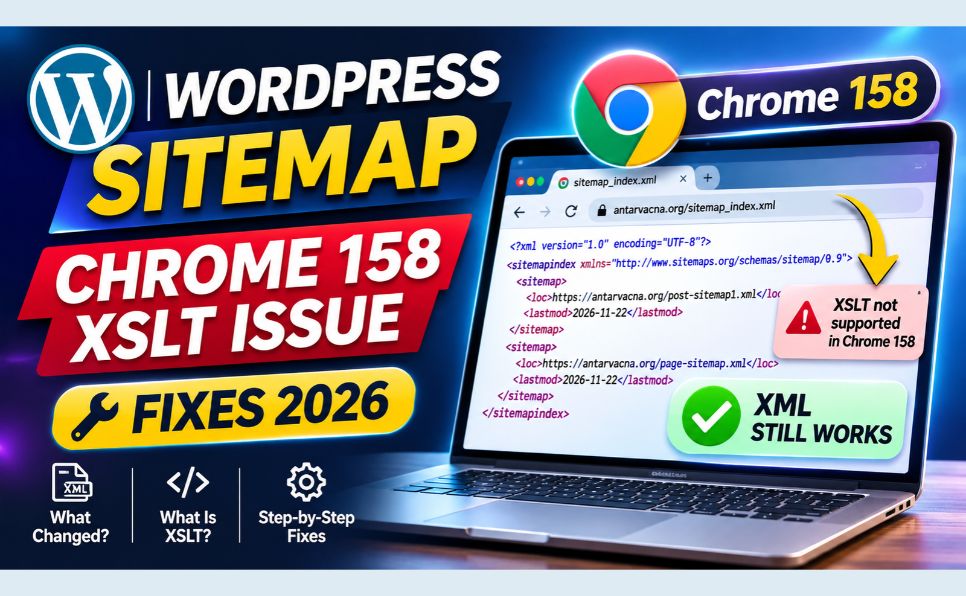
This change is connected to Chrome’s removal of browser-side XSLT (Extensible Stylesheet Language Transformations), a technology previously used to display XML sitemaps in a readable format.
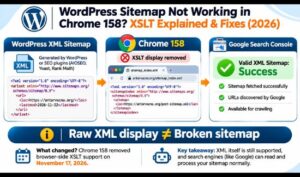
The good news is that a sitemap displaying raw XML in Chrome does not automatically mean the sitemap is broken.
Search engines can still read properly formatted XML sitemaps without relying on browser-side XSLT.
In this guide, you’ll learn what changed in Chrome 158, why WordPress sitemaps may look broken, how to verify your sitemap in Google Search Console, and what to do if your sitemap actually contains errors.
Quick Answer: Is Your WordPress Sitemap Broken?
If your WordPress sitemap displays raw XML after the Chrome 158 update, the issue may only affect its visual presentation.
Chrome 158 removed support for client-side XSLT, which many WordPress sitemap generators previously used to turn XML data into a formatted table.
The underlying sitemap can remain valid.
Before changing your WordPress settings, check three things:
- Does your sitemap URL load successfully?
- Does it contain valid XML and your expected URLs?
- Does Google Search Console report a successful sitemap submission?
If all three checks pass, you generally do not need to rebuild the sitemap simply because Chrome displays it differently.
What Changed in Google Chrome 158?
Google began removing support for browser-side XSLT in Chrome 158, with the stable rollout scheduled for November 17, 2026.
XSLT is a technology used to transform XML documents into other formats, including readable HTML presentations.
Historically, many WordPress SEO plugins used XSLT stylesheets to make XML sitemaps easier for website owners to inspect.
For example, instead of showing XML tags, a browser could display a table containing:
- Website URLs
- Last modified dates
- Sitemap information
- Related image information, depending on the generator
Chrome’s change affects this browser-side transformation.
Why Did Chrome Remove XSLT?
According to Chrome’s official developer documentation, the removal is connected to security and maintenance concerns involving older XSLT-processing libraries.
Google also identified relatively low usage of client-side XSLT compared with modern web technologies.
The removal affects the browser’s XSLT processing mechanisms, including the XSLTProcessor JavaScript API and XSLT processing instructions.
Important: Chrome has not removed general XML support.
Official source: Chrome for Developers – Removing XSLT for a More Secure Browser
What Is XSLT and How Does It Affect WordPress Sitemaps?
XSLT stands for Extensible Stylesheet Language Transformations.
It allows an XML document to be transformed into another presentation format.
XML vs. XSLT
XML stores structured information.
For example, an XML sitemap may contain:
<?xml version="1.0" encoding="UTF-8"?>
<urlset xmlns="http://www.sitemaps.org/schemas/sitemap/0.9">
  <url>
    <loc>https://example.com/</loc>
  </url>
</urlset>
This XML tells search engines about a URL.
An XSLT stylesheet can transform the same information into a more readable display for humans.
What Happens Without XSLT?
When Chrome no longer applies the XSLT transformation, the browser may display the underlying XML directly.
You might see a warning indicating that the document cannot be formatted using its referenced XSLT stylesheet.
That warning concerns browser presentation.
It does not, by itself, indicate that Google cannot process the sitemap.
Why Does My WordPress Sitemap Show Raw XML?
There are several possible explanations.
1. Chrome 158 No Longer Supports the Sitemap’s XSLT Stylesheet
This is the main new issue affecting some WordPress websites.
The XML remains available, but Chrome does not transform it into the familiar table.
2. Your SEO Plugin Still References an XSLT File
Some versions of WordPress SEO plugins continue to reference XSLT stylesheets.
Examples of popular sitemap-generating plugins include:
- All in One SEO (AIOSEO)
- Yoast SEO
- Rank Math
- The SEO Framework
The behavior depends on the installed plugin version and its sitemap implementation.
3. Your Sitemap Contains a Genuine XML Error
Not every sitemap problem is caused by Chrome.
A sitemap may actually be invalid because of:
- Incorrect XML formatting
- Unexpected HTML output
- PHP warnings appearing before XML
- Server errors
- Incorrect content types
- Broken sitemap URLs
- Plugin conflicts
This is why checking Google Search Console is more useful than judging sitemap health by browser appearance alone.
How to Check Whether Your WordPress Sitemap Is Working
Follow these steps before making any technical changes.
Step 1: Find Your WordPress Sitemap URL
Common sitemap locations include:
WordPress Core Sitemap
https://example.com/wp-sitemap.xml
SEO Plugin Sitemap
https://example.com/sitemap_index.xml
Some configurations use:
https://example.com/sitemap.xml
The actual location depends on your website configuration and SEO plugin.
Step 2: Open the Sitemap in Your Browser
Open the sitemap URL directly.
You may see:
- A formatted table
- Raw XML
- A browser warning related to XSLT
- An actual error message
Raw XML is not automatically a problem.
Step 3: Confirm the Sitemap Contains URLs
Look for standard XML sitemap elements.
For a regular URL sitemap, common elements include:
<urlset><url><loc><lastmod>when provided
For a sitemap index, common elements include:
<sitemapindex><sitemap><loc>
The <loc> element identifies the URL or sitemap location.
The optional <lastmod> element can communicate when content was meaningfully modified.
Step 4: Check the HTTP Response
A healthy sitemap generally returns HTTP status 200.
If the sitemap returns a 404, 403, 500, or another unexpected response, investigate the server or WordPress configuration.
Also confirm that the response contains XML rather than an error page.
Step 5: Verify the Sitemap in Google Search Console
This is one of the most useful checks.
Open:
Then navigate to:
Indexing → Sitemaps
Review the submitted sitemap.
Check:
- Submission status
- Last read date
- Discovered URLs
- Any reported processing errors
A Success status indicates that Google processed the submitted sitemap without a reported sitemap-level error.
However, this does not guarantee that every listed page will be crawled or indexed.
Chrome 158 Sitemap Issue vs. Real Sitemap Errors
Understanding the difference can save you unnecessary troubleshooting.
| Situation | Likely explanation | Recommended action |
|---|---|---|
| Raw XML appears in Chrome | XSLT presentation unavailable | Check Search Console |
| XSLT warning appears | Browser cannot apply stylesheet | Verify underlying XML |
| Sitemap status is Success | Google processed sitemap | No browser-related repair needed |
| Sitemap returns 404 | Missing or incorrect endpoint | Check sitemap configuration |
| Sitemap returns 500 | Server-side problem | Investigate hosting and logs |
| Sitemap contains HTML errors | Invalid XML output | Check plugins, theme, and PHP warnings |
| Sitemap cannot be fetched | Access or server issue | Check HTTP status and server settings |
| URLs are not indexed | Separate indexing issue | Inspect individual URLs |
The most important distinction is that sitemap formatting and Google indexing are different issues.
How to Fix a WordPress Sitemap That Is Actually Broken
If Google Search Console reports errors or your sitemap does not load correctly, follow these troubleshooting steps.
Fix 1: Check Your SEO Plugin Sitemap Settings
If you use AIOSEO, open your WordPress dashboard and navigate to:
All in One SEO → Sitemaps
Confirm that the XML sitemap feature is enabled.
Review the included post types and taxonomies.
Make sure important public content is included where appropriate.
If you use Yoast SEO or Rank Math, locate the corresponding sitemap settings in your installed plugin.
Do not change sitemap settings simply because Chrome displays raw XML.
Fix 2: Check for Plugin Conflicts
Some WordPress websites have multiple plugins attempting to manage sitemap generation.
This may create overlapping sitemap configurations or unexpected behavior.
Review your active SEO plugins.
Use one primary sitemap configuration unless you have a specific reason for a different setup.
Before disabling plugins on a production website, create a backup and consider testing changes in a staging environment.
Fix 3: Review WordPress Permalink Settings
If a sitemap endpoint unexpectedly returns a 404, WordPress rewrite rules may need attention.
Navigate to:
Settings → Permalinks
Review your existing permalink configuration.
Where appropriate, saving the existing settings may refresh rewrite rules.
Do not change the permalink structure unnecessarily, because changing established article URLs can create additional problems.
Fix 4: Check Server Errors
If your sitemap returns a 500 error, investigate:
- PHP errors
- Hosting resource limits
- Plugin compatibility
- Web server configuration
- Security rules
- Caching conflicts
Check your hosting error logs or contact your hosting provider.
Fix 5: Check XML Output
A sitemap should contain valid XML.
Unexpected content before the XML declaration can cause parsing problems.
Examples include:
- PHP warning messages
- Debug output
- HTML error pages
- Incorrectly generated markup
Fix the underlying error rather than hiding it with cosmetic browser changes.
Fix 6: Review Caching and CDN Settings
Caching plugins and content delivery networks can sometimes serve outdated or incorrect responses.
Check whether your sitemap URL is being cached incorrectly.
If necessary, clear relevant caches and test the sitemap again.
Avoid disabling all caching or security protections without identifying the cause.
Fix 7: Check robots.txt and Sitemap Accessibility
Open:
https://example.com/robots.txt
Review whether it contains a sitemap reference.
For example:
Sitemap: https://example.com/sitemap_index.xmlA sitemap reference in robots.txt can help search engines discover the sitemap.
However, it is not mandatory if the sitemap is discovered through other supported methods.
Also check whether server rules prevent Googlebot from accessing the sitemap.
Do You Need to Remove XSLT From Your WordPress Sitemap?
Usually, no immediate action is necessary if the sitemap is valid and Google Search Console reports Success.
Removing the stylesheet reference may eliminate browser warnings, but it does not improve the underlying XML sitemap’s indexing performance.
If you want a human-readable sitemap display, check whether your SEO plugin has released an updated implementation.
Some plugin developers are moving toward CSS-based sitemap presentation.
Should You Edit WordPress Core Files?
No.
Avoid editing WordPress core files to remove XSLT references.
Core modifications can be overwritten by updates and may introduce maintenance problems.
If a genuine compatibility issue needs to be addressed, use an official update or a carefully tested supported solution.
Does Chrome 158 Affect Google Rankings or Indexing?
The XSLT removal itself does not prevent Google from reading valid XML sitemaps.
Search engine crawlers process the XML content rather than depending on the browser’s human-readable XSLT presentation.
Therefore, a sitemap changing from a formatted table to raw XML does not, by itself, cause:
- Google indexing failures
- Ranking drops
- Sitemap URL loss
- Crawl blocking
- Removal of existing indexed pages
However, separate technical problems can still affect indexing.
For example, a website may have a perfectly valid sitemap while individual pages remain unindexed.
Why Are My Pages Still Not Indexed?
Possible factors include:
- Duplicate or substantially overlapping content
- Canonical selection
- Crawl accessibility
- Content usefulness and distinctiveness
- Website structure
- Server availability
- Google’s indexing decisions
A successful sitemap submission is a discovery signal, not an indexing guarantee.
For a more detailed explanation, read our XML Sitemap Complete Guide.
You can also explore the Google Search Console Complete Guide.
WordPress Sitemap Troubleshooting Checklist for 2026
Use this checklist whenever your sitemap appears broken.
- Open the correct sitemap URL.
- Check whether the issue is only visual.
- Confirm that XML content is present.
- Verify that important URLs appear.
- Check the HTTP response status.
- Review Google Search Console’s Sitemaps report.
- Confirm the sitemap status and last read date.
- Investigate actual XML parsing errors.
- Review SEO plugin sitemap settings.
- Check for conflicting sitemap generators.
- Investigate server or PHP errors.
- Review caching and CDN behavior.
- Avoid unnecessary core file modifications.
- Inspect individual pages separately if indexing remains a concern.
Frequently Asked Questions
Why is my WordPress sitemap not working in Chrome 158?
Chrome 158 removed support for browser-side XSLT. If your sitemap relies on an XSLT stylesheet for presentation, Chrome may display raw XML instead of a formatted table. The underlying sitemap may still be valid.
Is raw XML in Chrome a sitemap error?
Not necessarily. XML is the underlying format of an XML sitemap. Raw XML can be normal after browser-side XSLT support is removed.
Does Chrome 158 affect Google Search Console?
Chrome’s XSLT removal does not change Google’s ability to process valid XML sitemaps. Search Console may still report unrelated sitemap or indexing issues.
Does a successful sitemap submission guarantee indexing?
No. Google may discover URLs from a sitemap without indexing every page.
How do I find my WordPress sitemap?
Common locations include /wp-sitemap.xml for WordPress core and /sitemap_index.xml for many SEO plugin configurations. Your exact URL depends on your setup.
Can AIOSEO sitemaps still work after Chrome 158?
Yes. AIOSEO-generated XML sitemaps can remain readable by search engines even when Chrome no longer applies their XSLT presentation. Verify the actual sitemap status in Google Search Console.
Should I install a plugin to restore the old sitemap appearance?
Not necessarily. If the sitemap is valid and search engines can read it, changing its appearance is optional. Check for official plugin updates before installing additional software.
Should I resubmit my sitemap after the Chrome update?
Not solely because of the Chrome update. If the sitemap URL and content remain valid and Google Search Console reports Success, resubmitting the same sitemap is generally unnecessary.
What if my sitemap shows a 404 error?
Check the correct sitemap URL, SEO plugin configuration, WordPress rewrite rules, and server settings. A 404 response is a different issue from Chrome’s XSLT removal.
Can a valid sitemap help fix Crawled – Currently Not Indexed?
A valid sitemap helps Google discover URLs, but it does not guarantee indexing. Investigate individual pages, content quality, duplication, canonical configuration, and other relevant signals.
Final Thoughts
The Chrome 158 XSLT change has created confusion for some WordPress website owners, especially those accustomed to viewing XML sitemaps as formatted tables.
But the most important takeaway is simple:
A sitemap that displays raw XML is not necessarily broken.
Before changing plugins, editing WordPress files, or resubmitting your sitemap, verify its actual health using Google Search Console.
If the sitemap is accessible, contains valid XML, and Google reports successful processing, the browser presentation change alone usually requires no technical repair.
If genuine errors appear, investigate the specific problem instead of assuming Chrome 158 is responsible.
Continue Learning About WordPress and Technical SEO
Explore these helpful Antarvacna resources:
- XML Sitemap Complete Guide
- Google Search Console Complete Guide
- WordPress Maintenance Checklist 2026
- On-Page SEO Complete Guide
- Web Hosting, SEO & Tech Guides
For professional WordPress, hosting, or technical SEO assistance, visit Antarvacna Services.